
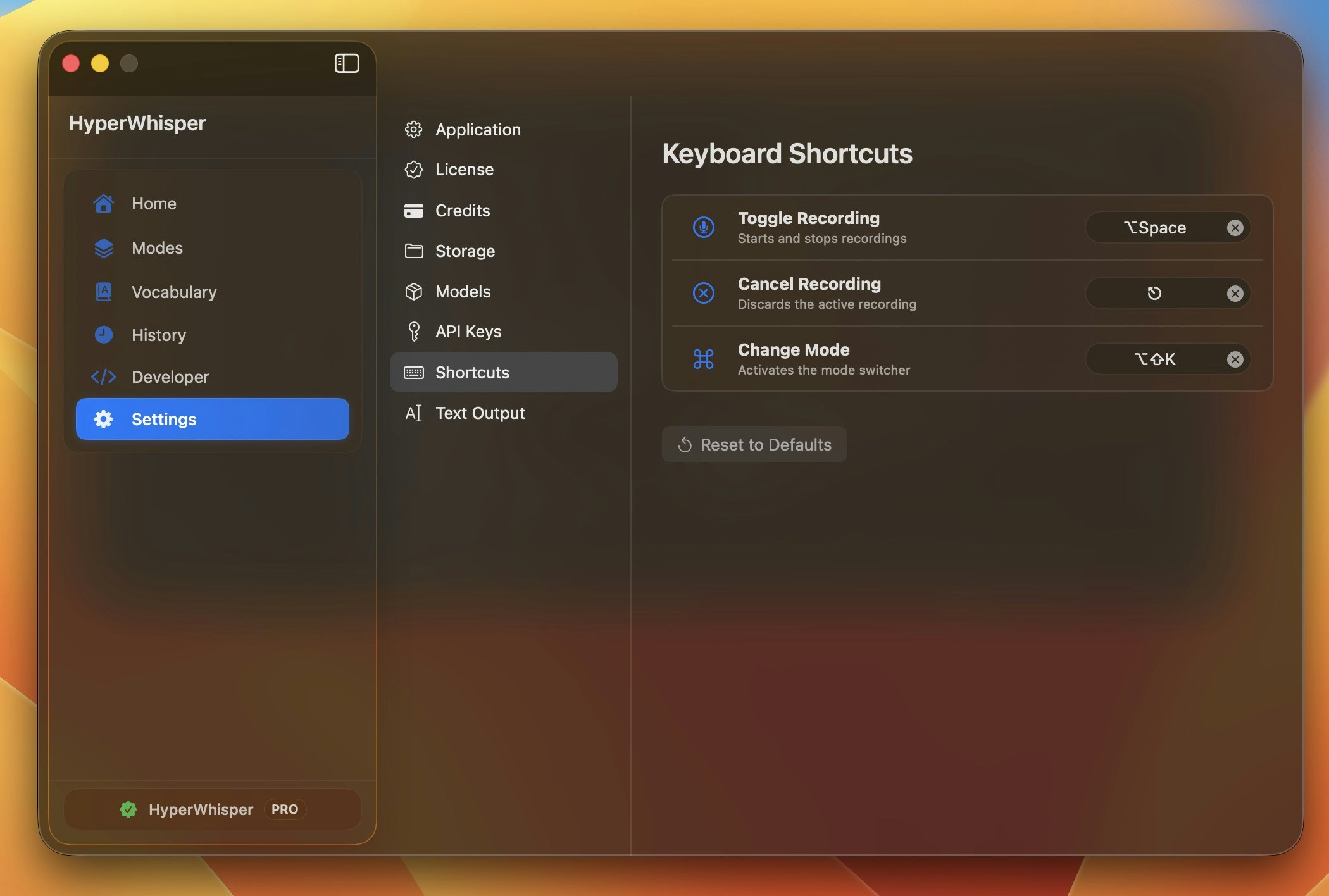
Default Global Shortcuts
- macOS
- Windows
| Action | Default | Description |
|---|---|---|
| Toggle recording | ⌥Space | Starts or stops a transcription session. |
| Cancel recording | Esc | Discards the active session without saving. |
| Change mode | ⌃⇧K | Cycles through your available modes from anywhere. |
| Streaming recording | ⌥⇧Space | Starts a streaming transcription session. |
Recording Activation Modes
You can trigger recording in three ways:- Toggle — Press once to start, press again to stop. Hands-free after activation.
- Push-to-talk (hold) — Hold a key or modifier down to record; release to stop. Great for short bursts where you want zero risk of leaving recording on.
- Double-press to lock — Tap the push-to-talk key twice quickly to lock recording on; tap twice again to stop. Useful when you want hands-free recording without switching to the toggle shortcut.
Customizing Shortcuts
- macOS
- Windows
Click the recorder for any action
Click the recorder control next to the action you want to change, then press the new key combination.
Resolve conflicts
Conflicting assignments are flagged immediately. Pick an unused combination if macOS rejects your choice.
Push-to-Talk
Push-to-talk lets you record while holding a key — the moment you release, recording stops and transcription begins. It mirrors a walkie-talkie and is ideal for short bursts where you want precise control.Enabling and choosing a trigger key
- macOS
- Windows
Go to Settings → Shortcuts and turn on the Push to Talk toggle.Once enabled, choose your trigger from the mode picker:
| Option | Key |
|---|---|
| FN Key | Globe / Fn key |
| Control Key | Left ⌃ modifier |
| Left Option Key | Left ⌥ modifier |
| Right Option Key | Right ⌥ modifier |
| FN + Control | Fn + ⌃ held together |
| FN + Left Option | Fn + ⌥ held together |
| Custom Shortcut | Any key combo you record |
Bare modifier modes (FN, Control, Option) require Accessibility permission because macOS only exposes raw modifier key events via the Accessibility API. HyperWhisper will prompt you if the permission is missing. See Permissions for the setup steps.
Push-to-talk has a 250 ms activation delay before recording begins. This filters out modifier keys you press as part of normal shortcuts (for example,
⌘C to copy) so they do not accidentally trigger a recording session.Double-press to lock
When double-press is enabled, tapping the push-to-talk key twice in quick succession locks recording on — you no longer need to hold the key. Tap twice again to stop.- macOS
- Windows
The Double Press to Lock toggle appears in Settings → Shortcuts under the push-to-talk card. It is shown only when your push-to-talk mode is set to a single modifier key (FN, Control, Left Option, or Right Option). Combo modes (FN + Control, FN + Left Option) and Custom mode do not support double-press lock.The detection window is 1.5 seconds — both taps must land within that interval to engage lock mode.
Quick Capture (macOS)
Quick Capture is a macOS-only feature that sends a transcription directly to a new Apple Notes note rather than pasting into your focused app. It is useful for capturing ideas without switching context.Setting it up
Assign a shortcut
A shortcut recorder appears below the toggle. Click it and press the key combination you want to use.
Choose a mode
A mode picker lets you select which transcription mode Quick Capture uses. You can pin it to a specific mode or set it to Current Mode so it always follows your active selection.
If the automation permission has been denied, a warning banner appears in the Quick Capture settings card with instructions for re-enabling it in System Settings.
Menu Bar Icon & Status (macOS)
HyperWhisper lives in the macOS menu bar. For the full menu item reference including mode switching, microphone switching, and tray behavior on Windows, see Menu Bar & Tray Controls. The icon changes to indicate the current state:| State | Icon appearance |
|---|---|
| Idle | Standard template icon (adapts to light/dark menu bar) |
| Recording | Red tinted icon |
| Transcribing or post-processing | Standard icon (processing happens in the background) |
What the menu contains
Click the menu bar icon to open the HyperWhisper menu. It contains:- Start / Stop Recording — toggles the active recording session. Displays your configured shortcut hint on the right (or “Hold FN”, “Hold ⌃”, etc. if push-to-talk is enabled without a toggle shortcut).
- History — opens the main window to the recording history.
- Settings — opens the main window to Settings.
- Microphone — submenu listing all available input devices. A checkmark marks the currently active device; the system default input shows a “(Default)” label.
- Select Mode — submenu listing all your modes. A checkmark marks the active mode.
- Transcribe File — submenu listing your modes. Selecting one opens a file picker so you can transcribe an audio or video file using that mode.
- Help Center / Contact Support / Feedback — links to the docs and support portal.
- Version — displays the current app version (dimmed, not interactive).
- Quit — exits HyperWhisper.
System Tray Icon & Status (Windows)
On Windows, HyperWhisper shows an icon in the system tray. Double-clicking the icon opens the main window. Right-clicking the tray icon opens a context menu with the same set of actions as the macOS menu bar:- Start / Stop Recording
- History
- Settings
- Microphone submenu
- Select Mode submenu
- Transcribe File submenu
- Check for Updates
- Version label
- Quit
Troubleshooting Shortcuts
- Shortcut not responding — some key combinations (especially bare function keys) are consumed by other apps or macOS. Add at least one modifier (
⌥,⌃, or⇧) to reduce conflicts. - Push-to-talk not triggering — on macOS, bare modifier modes (Control, Option) require Accessibility permission. Open System Settings → Privacy & Security → Accessibility and ensure HyperWhisper is listed and enabled.
- Shortcut stops working after a while — on macOS, opening the main window once can re-activate background listeners that were paused by the system.
- Windows shortcut conflict — a warning banner appears in Settings → Shortcuts when two actions share the same combination. Resolve the conflict before saving.