
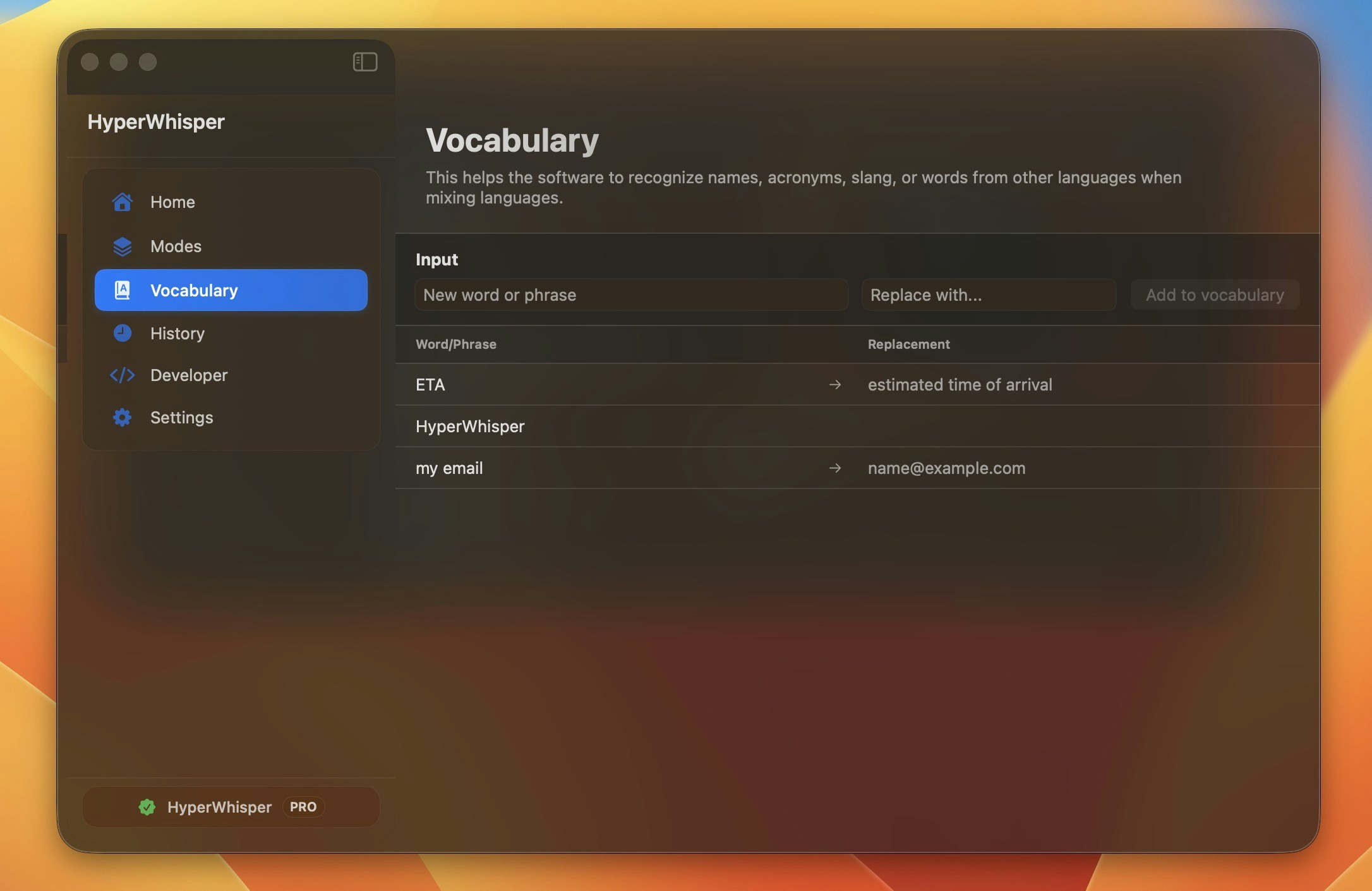
Adding New Entries
- macOS
- Windows
- Open the Vocabulary tab in the sidebar.
- Type the word or phrase you expect to speak.
- Press
Returnto add it as a recognition hint, or press⌘ Returnto expand a replacement field below the input. - If you opened the replacement field, type the text you want substituted, then press
⌘ Returnagain to confirm.
Esc to collapse it without saving a replacement.How Vocabulary Is Used
Vocabulary entries work in three distinct ways depending on their type and the transcription provider you are using.Recognition hints (no replacement)
Entries without a replacement are submitted as keyword hints to cloud providers that support them. This nudges the model toward the correct spelling without rewriting anything in the output.- Deepgram — sent as keyword boosting parameters (up to 100 terms; a warning appears on macOS if you exceed this limit).
- OpenAI Whisper, Soniox, HyperWhisper Cloud — sent as prompt vocabulary terms.
- ElevenLabs — sent as repeated
keytermsmultipart form fields (Scribe v2 only; capped at 100 terms, terms longer than 50 characters are dropped; Scribe v1 does not support vocabulary). - AssemblyAI, Gemini — sent as key-term context.
- Grok STT, Mistral — these providers do not support custom vocabulary hints; entries are acknowledged but not forwarded.
Text replacements
Entries with a replacement are applied by regex after transcription, before AI post-processing runs. Matching is case-insensitive and word-boundary anchored, so “eta” only matches the standalone abbreviation — not words like “metadata”. Stray leading or trailing spaces in both the word and replacement are trimmed automatically.AI post-processing context
All vocabulary entries (with and without replacements) are injected into the system prompt sent to AI post-processing. This helps the model understand your terminology when cleaning up text for Meeting, Custom, and other presets.Managing the List
- Edit — hover any row to reveal the pencil icon, or click it to load the entry back into the input field.
- Delete — hover any row to reveal the trash icon.
- Entries are alphabetized; the list shows the original phrase, an arrow indicator when a replacement exists, and the replacement text.
Backup and Import
Your vocabulary list travels with any HyperWhisper backup file and can be shared across devices or between macOS and Windows.Exporting your vocabulary
- macOS
- Windows
Choose what to include
Toggle on Vocabulary. You can include or exclude Settings, Modes, and API keys independently. To export vocabulary alone, toggle everything else off.
Importing vocabulary
- macOS
- Windows
Pick a file
Click Import and select a
.hwbackup.json file. HyperWhisper reads the file and shows you what it contains before changing anything.Review the merge preview
The import sheet shows a summary: how many words are new (will be added) and how many already exist in your list. If there are conflicts, choose whether to Skip existing entries or Replace them with the values from the file.
Merge behavior
Vocabulary import is always additive — it never deletes existing words.| Incoming word | Action |
|---|---|
| Not in your list | Added as a new entry |
| Already in your list (case-insensitive match) | Skipped, or replacement updated — your choice at import time |
"kubernetes" and "Kubernetes" are treated as the same word.
Cross-platform sharing
A.hwbackup.json file exported on macOS can be imported on Windows, and vice versa. The file uses a shared schema (schemaVersion: 2) and both apps merge vocabulary by word text — foreign UUIDs from the other platform do not create duplicates.
A vocabulary-only file (containing only the
vocabulary key) is the simplest format for sharing a word list without carrying settings or modes along with it.Best Practices
- Add proper nouns, company names, and repeated jargon even if the model usually recognizes them — consistency matters for emails and meeting notes.
- Use replacements to expand abbreviations into full phrases (for example,
ETA→estimated arrival time) or to standardize casing (kubernetes→Kubernetes). - Export your vocabulary before switching devices or reinstalling the app, then import it on the new installation.
- On Deepgram, keep your list to 100 entries or fewer; terms beyond that limit are not sent for boosting.